

Techwording.com | Is your Windows 11 PC running slower than it should? Maybe apps take longer to open, your system lags when multitasking, or startup feels unusually slow. This is a common issuee specially on low-end devices or after updates.
The good news is you don’t need expensive upgrades or third-party tools. In this complete guide, you’ll learn 10 proven ways to make Windows 11 faster, improve responsiveness, and boost overall performance using built-in features.
Why Windows 11 Becomes Slow
Windows 11 is designed with modern features and visual enhancements, but these improvements often require more system resources. Over time, your PC accumulates unnecessary processes, temporary files, and background applications that reduce performance.
Another factor is system updates. While updates are important, they sometimes introduce new processes that increase CPU and RAM usage. Combined with limited hardware resources, this can lead to noticeable slowdowns.
Understanding the root causes allows you to fix performance issues more effectively.
Common Causes of Slow Performance
Several factors contribute to a slow Windows 11 system. One of the most common is having too many startup programs. These applications automatically launch when your PC boots, consuming resources before you even begin using your system.
Background applications also play a major role. Many apps continue running silently, using memory and CPU without your awareness. In addition, temporary files, cache, and system logs accumulate over time and take up valuable storage space.
How to Identify What Slows Down Your PC
To improve performance, you first need to identify the cause. The easiest way to do this is by using Task Manager.
Press Ctrl + Shift + Esc and open the Processes tab. Look for programs that consume high CPU, memory, or disk usage. If a specific application is constantly using resources, it is likely slowing down your system.
You can also check the Startup tab to see which apps impact boot performance.
1. Disable Startup Programs
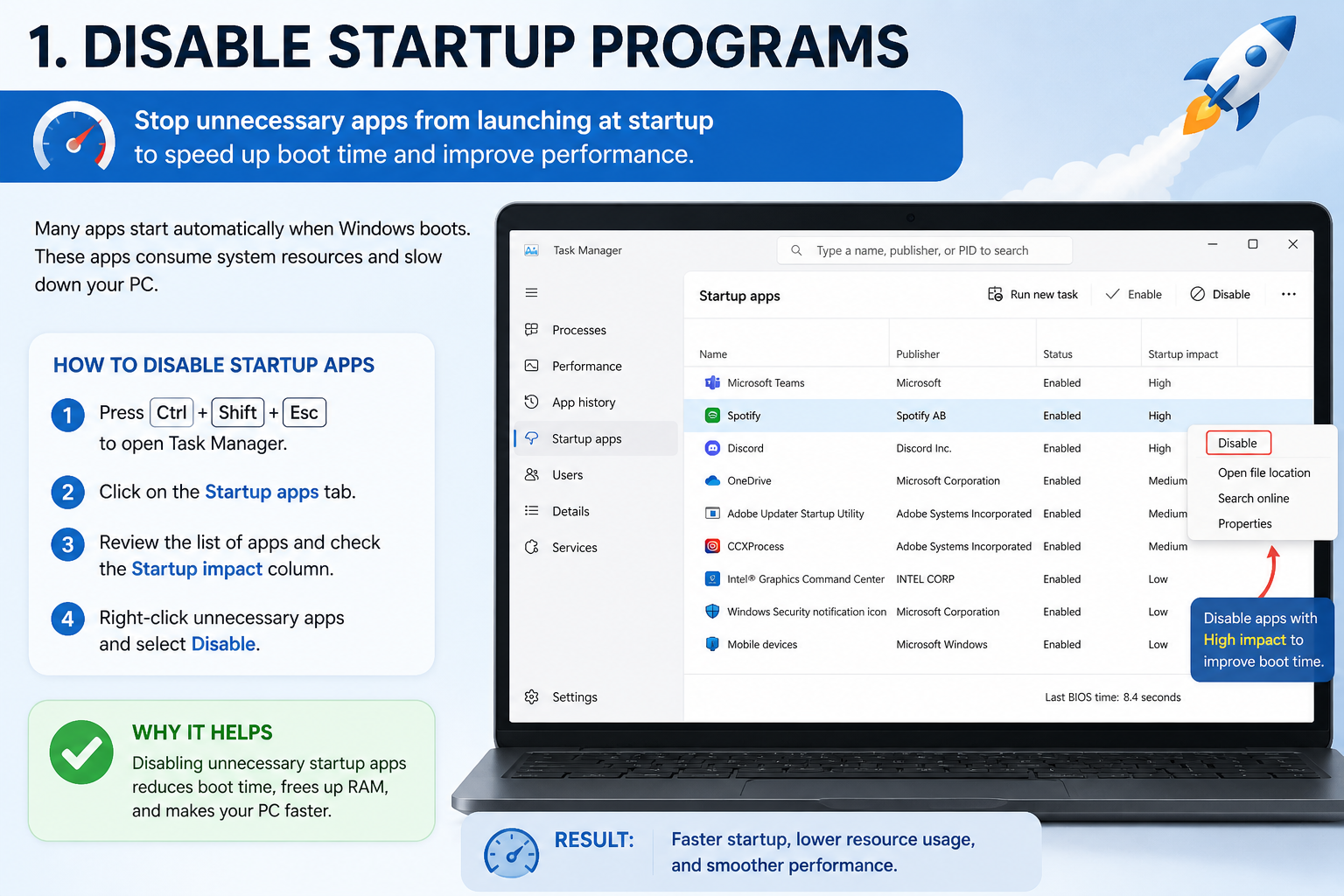

One of the fastest ways to improve Windows 11 performance is by disabling unnecessary startup applications. Many apps are configured to run automatically, even when you don’t need them.
This increases boot time and reduces available system resources.
Why Startup Apps Affect Performance
Startup apps begin running as soon as your system starts. This means your CPU and RAM are already being used before you open any programs.
The more apps you have enabled, the longer your PC takes to fully load. On low-end devices, this can make your system feel extremely slow.
Step-by-Step Guide to Disable Startup Apps
1. Press Ctrl + Shift + Esc
2. Go to the Startup Apps tab
3. Right-click unnecessary apps → Disable
Focus on apps marked as “High impact” for the best results.
Which Startup Apps Should You Disable?
You can safely disable apps like music players, chat applications, and game launchers. However, avoid disabling essential services such as antivirus software.
2. Adjust Visual Effects for Better Performance

Windows 11 includes animations and visual effects that improve aesthetics but consume system resources. Disabling these effects can significantly boost performance.
What Are Visual Effects in Windows 11?
Visual effects include animations, shadows, and transparency. These features make the interface look modern but require processing power.
How Visual Effects Impact System Performance
On powerful PCs, visual effects may not cause noticeable issues. However, on low-end systems, they can reduce responsiveness and increase lag.
Best Settings for Low-End PCs
Use “Adjust for best performance” to disable unnecessary effects. You can also manually enable essential options like smooth font edges.
3. Clean Temporary Files and Junk Data

Temporary files accumulate over time and can slow down your system. Cleaning them regularly helps free up storage and improve performance.
What Are Temporary Files?
Temporary files are created by Windows and applications to store short-term data. These include cache, update files, and logs.
How Junk Files Slow Down Your PC
When your storage is filled with unnecessary data, your system takes longer to access important files. This reduces speed and responsiveness.
Manual vs Automatic Cleanup Methods
You can manually delete temporary files through Settings, or use Storage Sense for automatic cleanup. Both methods are effective.
4. Disable Background Apps

Many apps run in the background without your knowledge, consuming system resources.
What Are Background Apps?
These are applications that continue running even when not actively used. Examples include messaging apps and cloud services.
How They Affect Performance
Background apps use RAM and CPU, reducing resources available for active tasks. This can slow down your PC.
How to Turn Off Background Apps Completely
Go to Settings → Apps → Installed Apps → Advanced Options → Set background permissions to Never.
5. Enable Storage Sense

Storage Sense helps keep your system clean automatically.
What Storage Sense Does
It removes temporary files, empty recycle bin, and deletes unused data.
Best Settings for Automatic Cleanup
Set it to run weekly for optimal results.
How Often Should You Run It?
For most users, once a week is enough. Heavy users may benefit from daily cleanup.
6. Update Windows and Drivers

Keeping your system updated ensures optimal performance.
Why Updates Improve Performance
Updates fix bugs, improve compatibility, and optimize system processes.
How to Check for Windows Updates
Settings → Windows Update → Check for updates.
How to Update Drivers Safely
Use Device Manager or official manufacturer websites.
7. Scan for Malware and Viruses

Malware can consume system resources and slow down your PC.
Signs Your PC May Be Infected
* Unusual slowdowns
* Unknown programs running
* Frequent pop-ups
How Malware Slows Down Windows
Malicious software runs in the background, using CPU and memory.
Step-by-Step Malware Scan Guide
Use Windows Security → Full Scan.
8. Disable Transparency Effects

Transparency effects can reduce performance on low-end systems.
What Transparency Effects Do
They add visual depth to menus and windows.
Performance Impact on Low-End PCs
They increase GPU usage, which may slow down your system.
When You Should Keep It Enabled
If your PC has strong hardware, you can keep it enabled.
9. Optimize Power Settings

Power settings affect system performance.
Power Modes Explained
Balanced saves energy, High Performance maximizes speed.
Best Power Settings for Speed
Use High Performance for better responsiveness.
Impact on Battery Life
Higher performance uses more battery.
10. Restart Your PC Regularly

Restarting clears memory and resets processes.
Why Restarting Improves Performance
It frees RAM and stops background processes.
How Often Should You Restart?
At least once every few days.
Restart vs Shutdown
Restart is more effective for performance fixes.
Bonus Tips to Boost Windows 11 Performance
* Upgrade to SSD
* Add more RAM
* Remove unused apps
* Keep desktop clean
Common Mistakes That Slow Down Windows 11
* Installing too many “optimizer” apps
* Ignoring updates
* Running too many programs simultaneously
FAQ
How can I make Windows 11 faster instantly?
Disable startup apps and clean temporary files.
Does this work on low-end PCs?
Yes, especially effective.
Do I need third-party software?
No.
Is it safe to disable startup apps?
Yes, as long as they are not essential.
Conclusion
Windows 11 performance issues are common but easy to fix. By applying these methods, you can significantly improve speed and responsiveness without spending money.
Start with startup apps and temporary files—you’ll notice immediate results.